配置
文章
使用OOERP
账户
文章
求购
客户关系管理
人力资源
表现
报告
贷款管理
项目
销售
库存
网站
教育
卫生保健
制造业
定制化
一体化

谷歌设置
为了启用 Google Integrations,OneOfficeERP 需要访问 API,通过该 API 可以同步数据,这是使用 OAuth 2.0 身份验证协议实现的。
如何设置 Google 设置
对于 Google 日历、Google 通讯录、Google 云端硬盘
为了允许与 Google 日历、Google 通讯录或 Google 云端硬盘同步,您需要授权 OneOfficeERP 从 Google 获取数据。以下是设置 Google 通讯录集成的示例
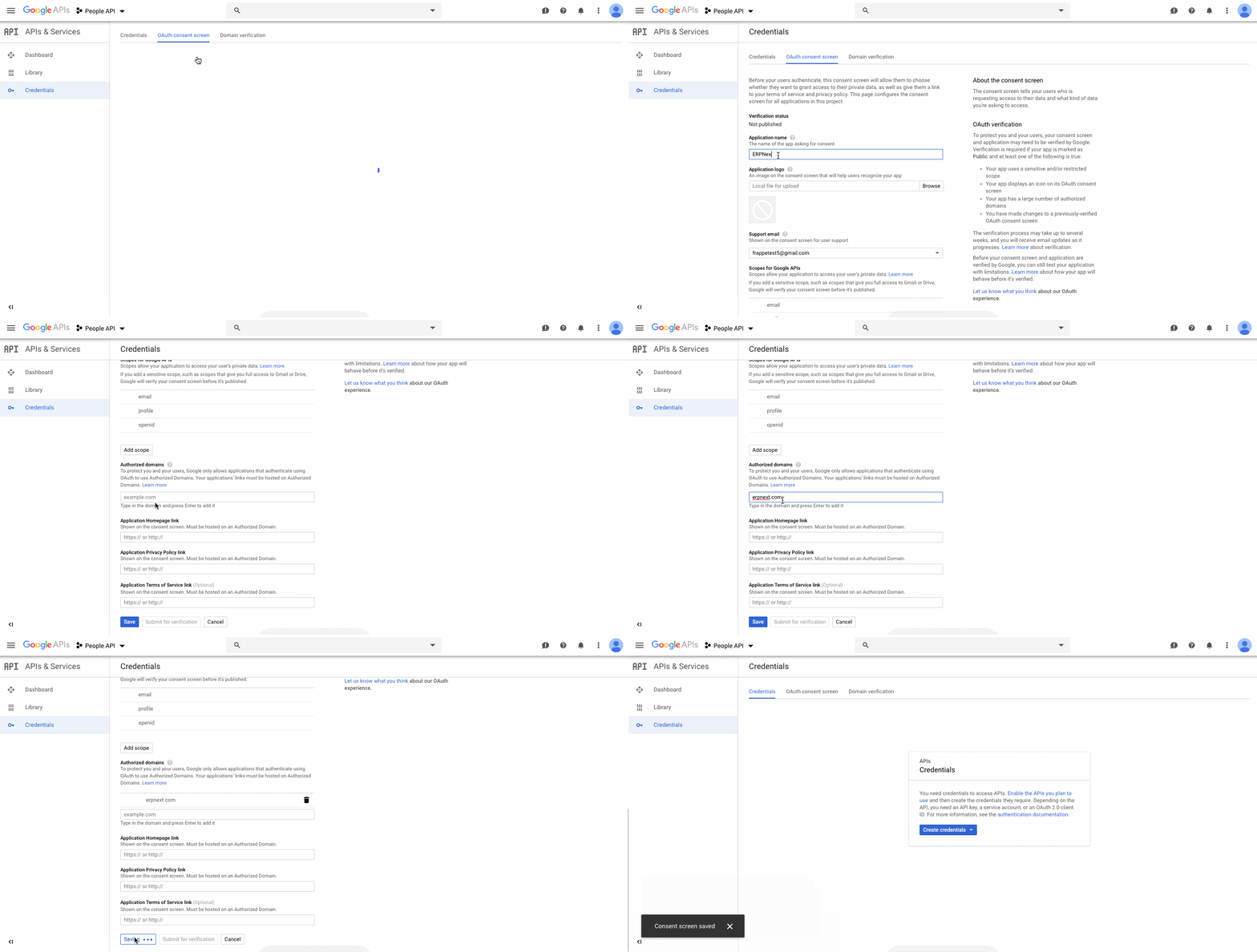
- 在 Google Cloud Platform 上创建一个新项目并生成新的 OAuth 2.0 凭据。
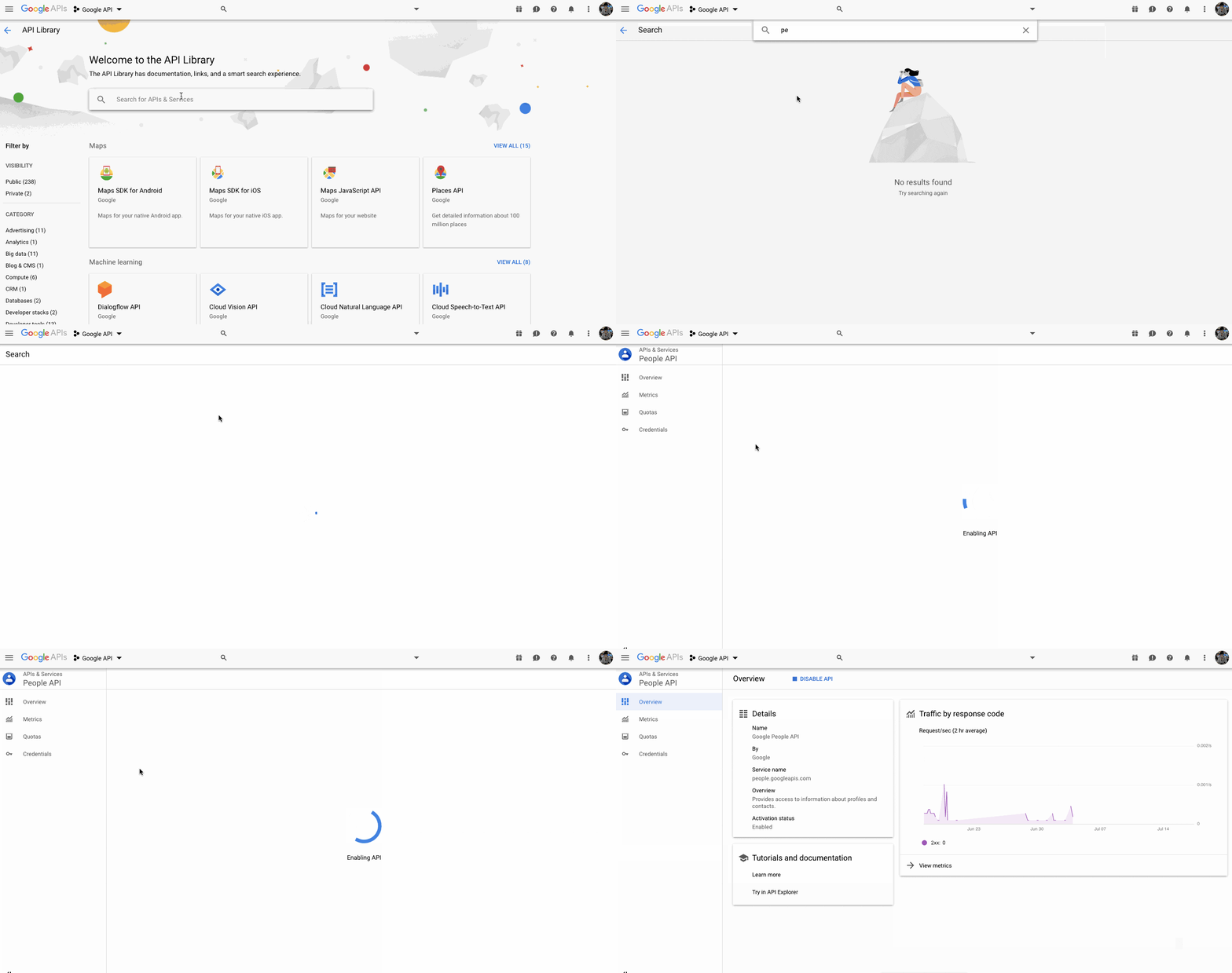
 2. 在 API 库中为您想要集成的集成启用 API 访问。
- Google 日历:日历 API
- Google 通讯录:人员 API
- Google 云端硬盘:云端硬盘 API
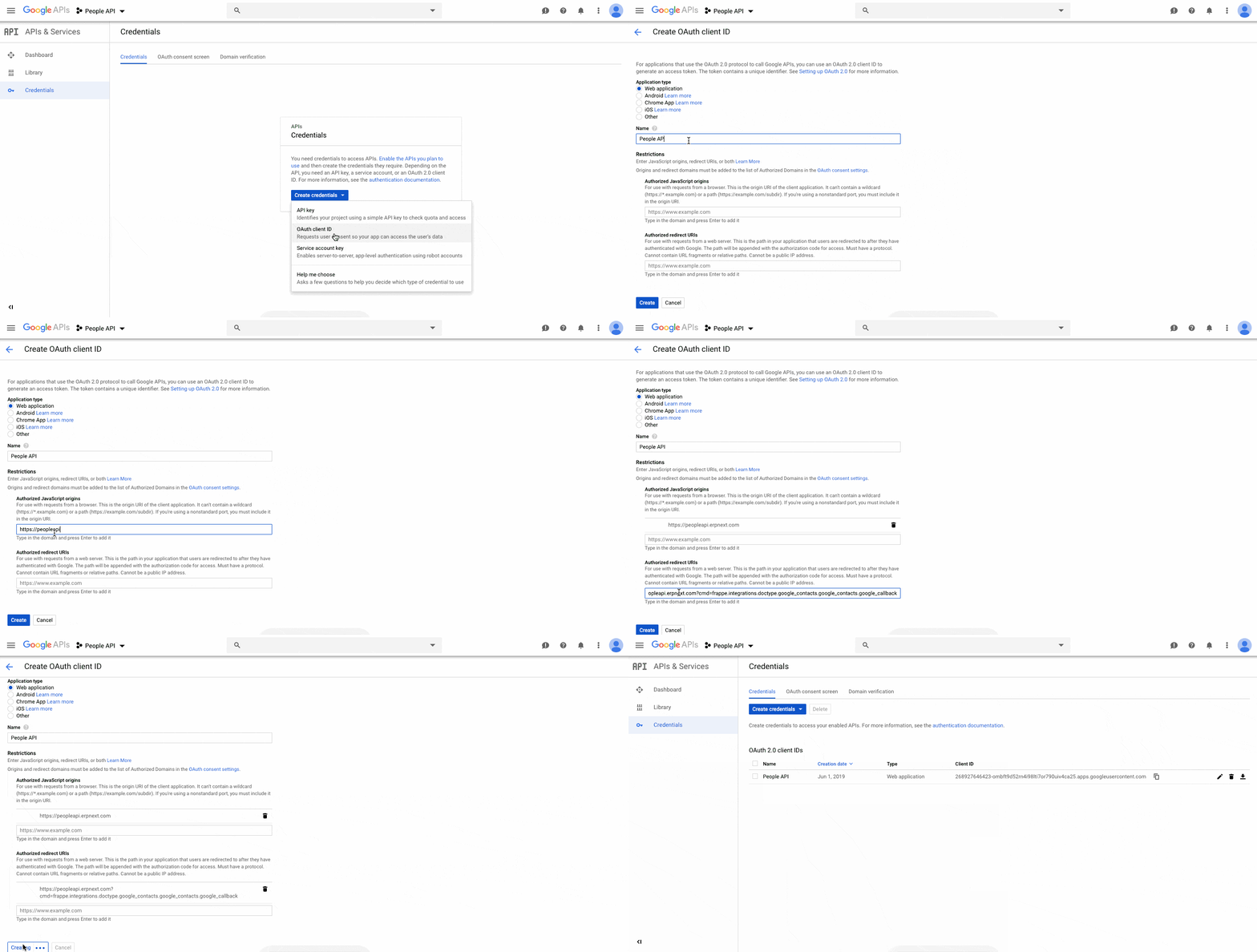
 3. 在 API 和服务 > 凭证 中创建一个新凭证并选择 创建 OAuth 客户端 ID
4. 选择应用程序类型 Web 应用程序
5. 将“https://{yoursite}”添加到授权 JavaScript 来源。
6. 添加
3. 在 API 和服务 > 凭证 中创建一个新凭证并选择 创建 OAuth 客户端 ID
4. 选择应用程序类型 Web 应用程序
5. 将“https://{yoursite}”添加到授权 JavaScript 来源。
6. 添加 https://{yoursite}?cmd=frappe.integrations.doctype.{integration_name}.{integration_name}.google_callback 作为授权重定向 URI。
- 您需要将
integration_name替换为以下内容之一: * 谷歌日历: google_calendar * Google 通讯录:google_contacts * Google 云端硬盘:google_drive - 例如:对于 Google 通讯录,URL 为“https://{yoursite}?cmd=frappe.integrations.doctype.google_contacts.google_contacts.google_callback”
 7. 在 Home > Integrations > Google Services > Google Settings 的 Google 设置中添加您的客户端 ID 和客户端密钥
对于谷歌地图
为了允许与 Google 地图同步,您需要生成 API 密钥,因为 Google 地图不需要访问 Google 的数据。
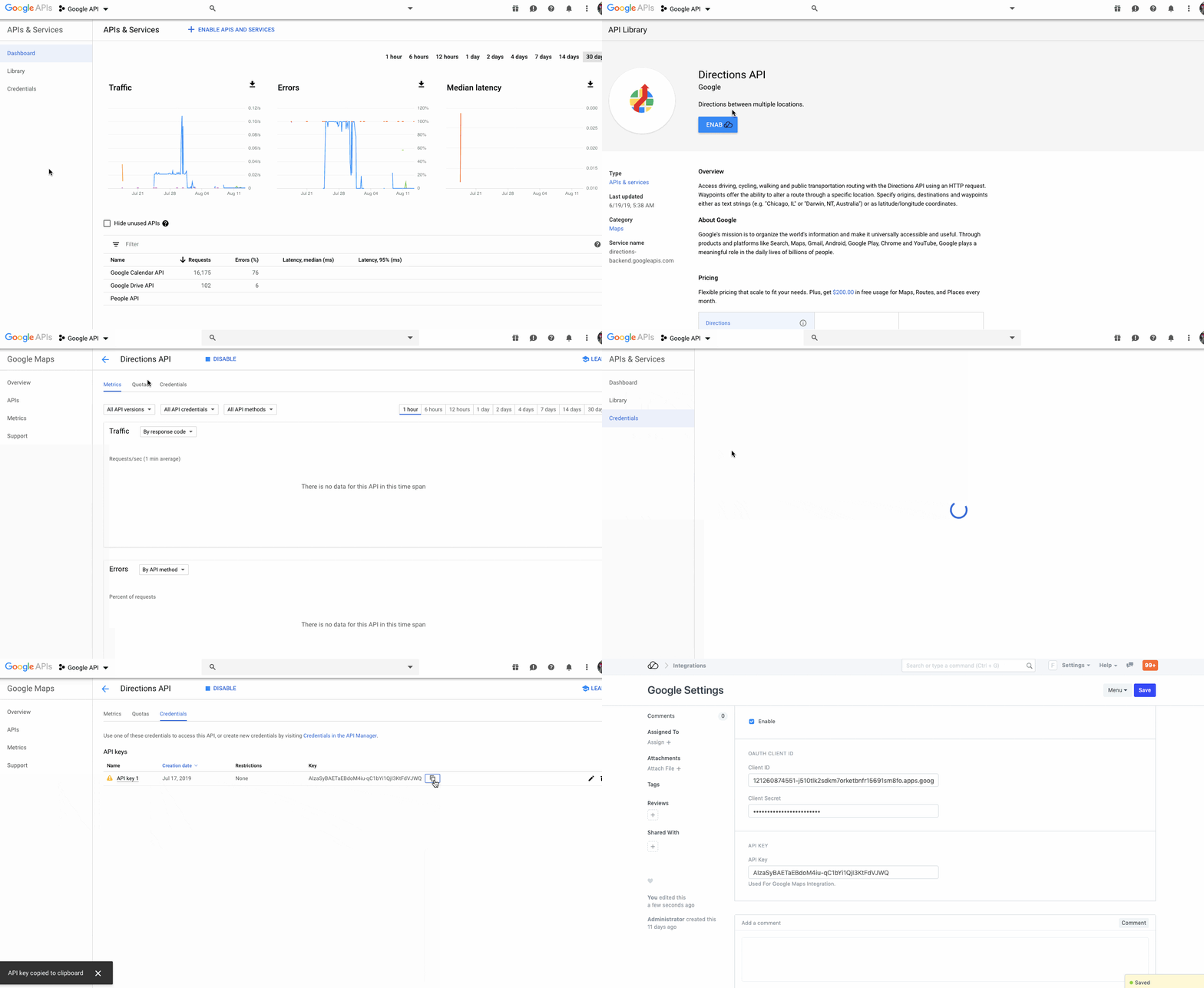
- 在Google Cloud Platform上创建一个新项目并生成新的API Key。
- 在 API 库中为 Directions API 启用 API 访问,然后在 主页 > 集成 > Google 服务 > Google 设置 的 Google 设置中添加 API 密钥。